<?xml version="1.0" encoding="UTF-8"?>
<feed xmlns="http://www.w3.org/2005/Atom">
  <title>Vedang.me, posts tagged tools</title>
  <link href="https://vedang.me/feeds/tools.xml" rel="self"/>
  <link href="https://vedang.me/"/>
  <updated>2026-08-31T02:14:12+00:00</updated>
  <id>https://vedang.me/</id>
  <author>
    <name>Vedang Manerikar</name>
  </author>
  <entry>
    <id>https://vedang.me/compiling-emacs-on-ubuntu/</id>
    <link href="https://vedang.me/compiling-emacs-on-ubuntu/"/>
    <title>Compiling Emacs Master Branch from source on Ubuntu</title>
    <updated>2025-01-01T00:00:00+00:00</updated>
    <content type="html"><![CDATA[<p>Compiling Emacs from source is non-trivial. Here are the steps for the interested reader:</p><p><div class="orgtoc"></p><ul><li><a href='#orgbf0be2d'>Get the source-code</a></li><li><a href='#org39d8b36'>Make sure you have the all the dependencies installed</a></li><li><a href='#org68de58c'>Compile Emacs!</a></li><li><a href='#org023de49'>Misc notes</a></div></li></ul><p><a id="orgbf0be2d"></a></p><h1 id="get_the_source-code">Get the source-code</h1><pre><code class="language-fish">git clone git://git.sv.gnu.org/emacs
</code></pre><p>This step takes a long time, because the Emacs source repository is giant. But I recommend cloning the full repo:</p><ul><li>It's easy to stay updated with the latest changes with <code>git fetch</code> in the future.</li><li>Telling Emacs where the C source code is let's us jump all the way down into primitive functions when exploring elisp functions.<pre><code class="language-emacs-lisp">    &#40;setq source-directory &#40;expand-file-name &quot;/&lt;path&gt;/emacs/&quot;&#41;&#41;
    &#40;setq find-function-C-source-directory &#40;expand-file-name &quot;/&lt;path&gt;/emacs/src/&quot;&#41;&#41;
    </code></pre></li></ul><p><a id="org39d8b36"></a></p><h1 id="make_sure_you_have_the_all_the_dependencies_installed">Make sure you have the all the dependencies installed</h1><p>The easiest way to install almost all the dependencies is to run the following command:</p><pre><code class="language-fish">sudo apt build-dep emacs
</code></pre><p>This command uses the information in the Ubuntu package management system. In my experience today (<span class="timestamp-wrapper"><span class="timestamp">[2025-01-01 Wed]</span></span>), this command installed everything other than <code>libgccjit</code> and <code>libtree-sitter</code>. Let's install those now:</p><h2 id="installing_libgccjit">Installing libgccjit</h2><ol><li>Check your gcc version with <code>gcc --version</code>.</li><li>You need to install <code>libgccjit-&lt;x&gt;-dev</code> where <code>&lt;x&gt;</code> is your gcc version.<pre><code class="language-fish">sudo apt install libgccjit-11-dev
</code></pre></li></ol><h2 id="installing_libtree-sitter">Installing libtree-sitter</h2><pre><code class="language-fish">sudo apt install libtree-sitter-dev
</code></pre><p><a id="org68de58c"></a></p><h1 id="compile_emacs%21">Compile Emacs!</h1><pre><code class="language-fish"># Generate Configure and Make scripts:
./autogen.sh
# Run the Configure command:
./configure --without-toolkit-scroll-bars --with-x-toolkit=gtk3 --with-xpm=ifavailable --with-jpeg=ifavailable --with-gif=ifavailable --with-tiff=ifavailable --with-xml2 --with-rsvg --without-pop --with-png --with-mailutils --with-native-compilation --with-cairo --with-harfbuzz --with-tree-sitter --with-sqlite3
# If everything works:
make -j8 bootstrap
# If everything works:
make -j8
# Test the binary:
src/emacs -Q
# Install the binary:
sudo make install
</code></pre><p><a id="org023de49"></a></p><h1 id="misc_notes">Misc notes</h1><ul><li>Running <code>./configure</code> will output the default flags that Emacs plans to use.<ul><li>If you look at the last section of what <code>configure</code> prints, you can check if there are new options which are not covered by my configure command above.</li></ul></li><li>To restart compilation from an absolutely clean slate, run <code>make distclean</code></li><li>To know the max number of cores you can run parallel compilation on, run <code>nproc</code>. This is the max value for the <code>j</code> parameter in the <code>make</code> command.</li></ul>]]></content>
  </entry>
  <entry>
    <id>https://vedang.me/tsp-find-all-elisp-files-not-containing-lexical-binding-directive/</id>
    <link href="https://vedang.me/tsp-find-all-elisp-files-not-containing-lexical-binding-directive/"/>
    <title>Tiny Shell Puzzle: Find all elisp files in my config which don't have a lexical-binding directive</title>
    <updated>2024-04-17T00:00:00+00:00</updated>
    <content type="html"><![CDATA[<p><div class="orgtoc"></p><ul><li><a href='#org15d0456'>Find all files which <span class="underline">do not</span> contain the phrase</a></li><li><a href='#org0c4e37a'>Add the directive to the first line of each file</a></li><li><a href='#h:57B58CC7-105F-4ADF-B13F-1F95AE2930F1'>The final answer, with an explanation of what each line does</a></li><li><a href='#org808f55e'>Searching only in the first line of the file</a></div></li></ul><p>For reasons unrelated to this post, the phrase <code>-&#42;- lexical-binding: t -&#42;-</code> needs to exist as a comment in the first line of all my Emacs Lisp files.</p><p>This is what the first line of most of my elisp files looks like:</p><p><code>;;; init-isearch.el --- Configuring built-in isearch the way I like it</code></p><p>The line starts with <code>;;;</code> (the comment syntax in Elisp), followed by the name of the file, and then a description of what the file contains.</p><p>This line needs to change to the following:</p><p><code>;;; init-isearch.el --- Configuring built-in isearch the way I like it -&#42;- lexical-binding: t -&#42;-</code></p><p>The caveats are as follows:</p><ol><li>Some files already contain this directive, so they shouldn't be modified</li><li>Some files do not start with <code>;;;</code>, these should be ignored.</li></ol><p>With those caveats in place, here is the tiny shell puzzle:</p><ol><li>Find all the files which need to be modified.</li><li>Modify all the files, writing the change back to disk</li></ol><p>This is a great example of the kind of one-off tasks that shell scripting is great for!</p><p>Once you've given it a try, scroll down to see my answer.</p><p><a id="org15d0456"></a></p><h1 id="find_all_files_which_%3Cspan_class%3D%22underline%22%3Edo_not%3C%2Fspan%3E_contain_the_phrase">Find all files which <span class="underline">do not</span> contain the phrase</h1><p>I use <code>ripgrep</code> for all my searching, and it gives me a handy way of solving this part of the problem:</p><pre><code class="language-fish">rg -t elisp --files-without-match &quot;lexical-binding&quot;
</code></pre><p><a id="org0c4e37a"></a></p><h1 id="add_the_directive_to_the_first_line_of_each_file">Add the directive to the first line of each file</h1><p>My mind immediately jumped to using <code>awk</code>, which is my goto power tool for modifying file content. This problem is actually easier to solve with <code>sed</code>, but I've dropped <code>sed</code> entirely from my toolkit (in favour of <code>awk</code>).</p><pre><code class="language-fish">gawk '
&#40;NR==1 &amp;&amp; /&#94;;;;/&#41;{ print $0 &quot; -&#42;- lexical-binding: t -&#42;-&quot; };
&#40;NR==1 &amp;&amp; !/&#94;;;;/&#41;{ print $0 };
&#40;NR&gt;1&#41;{ print $0 };
'
</code></pre><p><a id="h:57B58CC7-105F-4ADF-B13F-1F95AE2930F1"></a></p><h1 id="the_final_answer%2C_with_an_explanation_of_what_each_line_does">The final answer, with an explanation of what each line does</h1><pre><code class="language-fish">1  rg -t elisp --files-without-match &quot;lexical-binding&quot; | \
2  xargs -I {} \
3  gawk -i inplace '
4  &#40;NR==1 &amp;&amp; /&#94;;;;/&#41;{ print $0 &quot; -&#42;- lexical-binding: t -&#42;-&quot; };
5  &#40;NR==1 &amp;&amp; !/&#94;;;;/&#41;{ print $0 };
6  &#40;NR&gt;1&#41;{ print $0 };
7  ' {}
</code></pre><p>The meaning of each line is:</p><ul><li>Line 1: Use <code>rg</code> to find all fines which do not contain <code>lexical-binding</code>, and print only filenames.</li><li>Line 2: Pipe the filenames to <code>xargs</code> for pushing one-by-one to <code>awk</code>.</li><li>Line 3: Use the <code>-i inplace</code> switch to edit the file instead of printing to stdout.</li><li>Line 4: If line number is 1 and the line starts with <code>;;;</code>, add <code>-&#42;- lexical-binding: t -&#42;-</code> to the end of the line.</li><li>Line 5: If line number is 1 but the line <span class="underline">does not</span> start with <code>;;;</code>, just print the line as-is.</li><li>Line 6: For all other lines, just print the line as-is.</li><li>Line 7: This is where <code>xargs</code> will punch in the filename from our search (replacing <code>{}</code> with the filename)</li></ul><p>There is a bug in the first line &#x2013; our search query. Can you spot it? See if you can, and then scroll on to see the answer</p><p><a id="org808f55e"></a></p><h1 id="searching_only_in_the_first_line_of_the_file">Searching only in the first line of the file</h1><p>The bug is that we are looking for the phrase <code>lexical-binding</code> anywhere in the file. What we want is for it to exist in the first line of the file, and if it does not exist, we want to add it.</p><p>This bug meant I missed updating 3 files in my initial run.</p><p>I couldn't fix it using just <code>ripgrep</code>, so this was what I replaced the first line with. If you know a better solution, please get in touch!</p><pre><code class="language-fish">fd -e .el --exec sh -c 'head -n 1 {} | rg -qv lexical-binding &amp;&amp; echo {}'
</code></pre><p>Here, I use <code>fd</code> to find all emacs-lisp files, and then execute a small script on them. This script checks the first lines, and if the first line does not contain <code>lexical-binding</code>, it outputs the filename!</p>]]></content>
  </entry>
  <entry>
    <id>https://vedang.me/my-answer-to-how-do-i-get-started-with-emacs/</id>
    <link href="https://vedang.me/my-answer-to-how-do-i-get-started-with-emacs/"/>
    <title>My answer to "How do I get started with Emacs with minimal config"</title>
    <updated>2023-08-29T00:00:00+00:00</updated>
    <content type="html"><![CDATA[<h1 id="op%27s_requirements%3A">OP's Requirements:</h1><p>Features I want (have no issue trying to add manually, but would like to see it there) -</p><ul><li>Project Management</li><li>LSP with Linting</li><li>Popup/Toggle-based Terminals</li></ul><h1 id="my_answer%3A">My Answer:</h1><p>I'd be happy to explain / work with you on these requirements. What you are looking for:</p><ol><li><code>project.el</code> : Understanding what a project is (actions like searching in projects, switching projects, opening files in projects etc). IF you mean the other project management (task management) then <code>org-mode</code> which is a beast of it's own. Both are built-ins.</li><li><code>eglot</code> for LSP. Invoke with <code>M-x eglot</code> from inside whichever project.</li><li>I did not understand what this means.</li></ol><p>A long time back, I wrote some documents that you might find useful:</p><ol><li><a href="denote:20161111T202810.html" class="internal-link">What Your Programming Editor Should Be Able To Do</a> : a list of table-stakes operations, and key-bindings for my setup of Emacs.</li><li>An Opinionated Emacs Tutorial: Getting started fast. : A presentation I used to give in my previous work-place for getting started with Emacs: <a href="https://github.com/vedang/emacs-up/blob/master/docs/01_opinionated_emacs_tutorial.org">https://github.com/vedang/emacs-up/blob/master/docs/01_opinionated_emacs_tutorial.org</a> (This is more philosophy than quick-tips, but might be useful to you)</li></ol>]]></content>
  </entry>
  <entry>
    <id>https://vedang.me/tabfs-and-automation/</id>
    <link href="https://vedang.me/tabfs-and-automation/"/>
    <title>TabFS and Automation</title>
    <updated>2022-09-20T00:00:00+00:00</updated>
    <content type="html"><![CDATA[<p>Hello reader! This is a short update about the very cool <a href='https://omar.website/tabfs/'>TabFS</a>, which is a browser extension that maps your open tabs to the filesystem using Fuse. Think <code>/proc</code> but for the browser. This is an excellent idea, because now I can run all the tools that I am already familiar with on my tabs!</p><p>As I was reading through the TabFS page (linked above), I thought to myself: "this is so much RC energy!". So I checked, and lo and behold, Omar Rizwan is an RC Alum :D</p><h1 id="why_i_wanted_something_like_tabfs">Why I wanted something like TabFS</h1><p>The internet is full of interesting stuff that hijacks my attention. I end up getting completely distracted from my planned tasks. My solution to this is: I open all the links I want, but I don't read anything immediately. Instead, I capture the link in Org-Mode and schedule it for later (generally tomorrow). This way, when I am planning the day, I have a bunch of links in my Agenda. I choose which ones I want to read on any given day and defer / delete the rest. I use the excellent <a href='https://orgmode.org/manual/Agenda-Commands.html'>Bulk Scatter</a> tool built into Org Agenda for this.</p><p>I thought: Why do this manually? Enter TabFS</p><h1 id="a_small_babashka_script">A small Babashka script</h1><p>With TabFS installed, it was a small step to go from there to <code>org-mode</code>. My go-to scripting tool is <a href='https://book.babashka.org/'>Babashka</a>. Here is the meat of the code:</p><pre><code class="language-clojure">&#40;require '&#91;babashka.fs :as fs&#93;
         '&#91;clojure.string :as cs&#93;&#41;

&#40;defn build-tab-info
  &quot;Collects the title and URL for all open tabs using TabFS.&quot;
  &#91;opts&#93;
  &#40;map &#40;fn &#91;t&#93;
         {:title &#40;first &#40;fs/read-all-lines &#40;str t &quot;/title.txt&quot;&#41;&#41;&#41;
          :url &#40;first &#40;fs/read-all-lines &#40;str t &quot;/url.txt&quot;&#41;&#41;&#41;}&#41;
       &#40;fs/list-dir &#40;:tab-dir opts&#41;&#41;&#41;&#41;

&#40;def plain-text-template
  &quot;The template for creating the org-mode plain-text entry. Placeholders
are for the following items &#40;in order&#41;:
  1. Org-Mode Heading level: default value is 1.
  2. URL of the link to the stored.
  3. Title of the link to be stored.
  4. Date when the Tab is scheduled for reading: default is tomorrow.
  5. Date when the Tab was captured.&quot;
  &quot;%s TODO &#91;&#91;%s&#93;&#91;%s&#93;&#93;\nSCHEDULED: %s\n%s&quot;&#41;

&#40;defn tabs-&gt;text
  &quot;Convert the list of open tabs to a wall of text that can be stored in
  Plain-Text.&quot;
  &#91;opts&#93;
  &#40;-&gt;&gt; &#40;build-tab-info opts&#41;
       &#40;map &#40;fn &#91;t&#93;
              &#40;format plain-text-template
                      &#40;apply str &#40;repeat &#40;:org-mode-heading-level opts&#41; &quot;&#42;&quot;&#41;&#41;
                      &#40;:url t&#41;
                      &#40;:title t&#41;
                      &#40;:scheduled-on opts&#41;
                      &#40;:captured-on opts&#41;&#41;&#41;&#41;
       &#40;cs/join \newline&#41;&#41;&#41;
</code></pre><p>I wrote a <a href='https://github.com/vedang/bb-scripts#bb-plain-text-tabs'>CLI script</a> for the code, here is what the <code>help</code> command looks like:</p><pre><code>✦ ➜ bb-plain-text-tabs --help
Convert all open tabs to plain text Org Mode format. Optionally, close the open tabs.

Usage: bb-plain-text-tabs &#91;options&#93;

Options:
  -fs,  --tabfs-mnt-path                &#42;REQUIRED&#42; TabFS mount path. The path on the filesystem where TabFS is mounted.
  -hl,  --org-mode-heading-level        1                            The heading level at which link headings will be stored in Org Mode.
  -s,   --scheduled-on           &lt;date&gt; tomorrow                     Date on which to schedule reading this batch of links, in yyyy-MM-dd format.
  -del, --delete-tabs            &lt;del&gt;  false                        Boolean value to indicate if browser tabs should be closed

Examples:
   bb-plain-text-tabs -fs &lt;TabFS Mount Path&gt; # Convert Open Tabs to Plain Text
   bb-plain-text-tabs -fs &lt;TabFS Mount Path&gt; --delete-tabs # Delete tabs and print plain text
   bb-plain-text-tabs -fs &lt;TabFS Mount Path&gt; | tee tabs.org # Capture Plain Text output to file
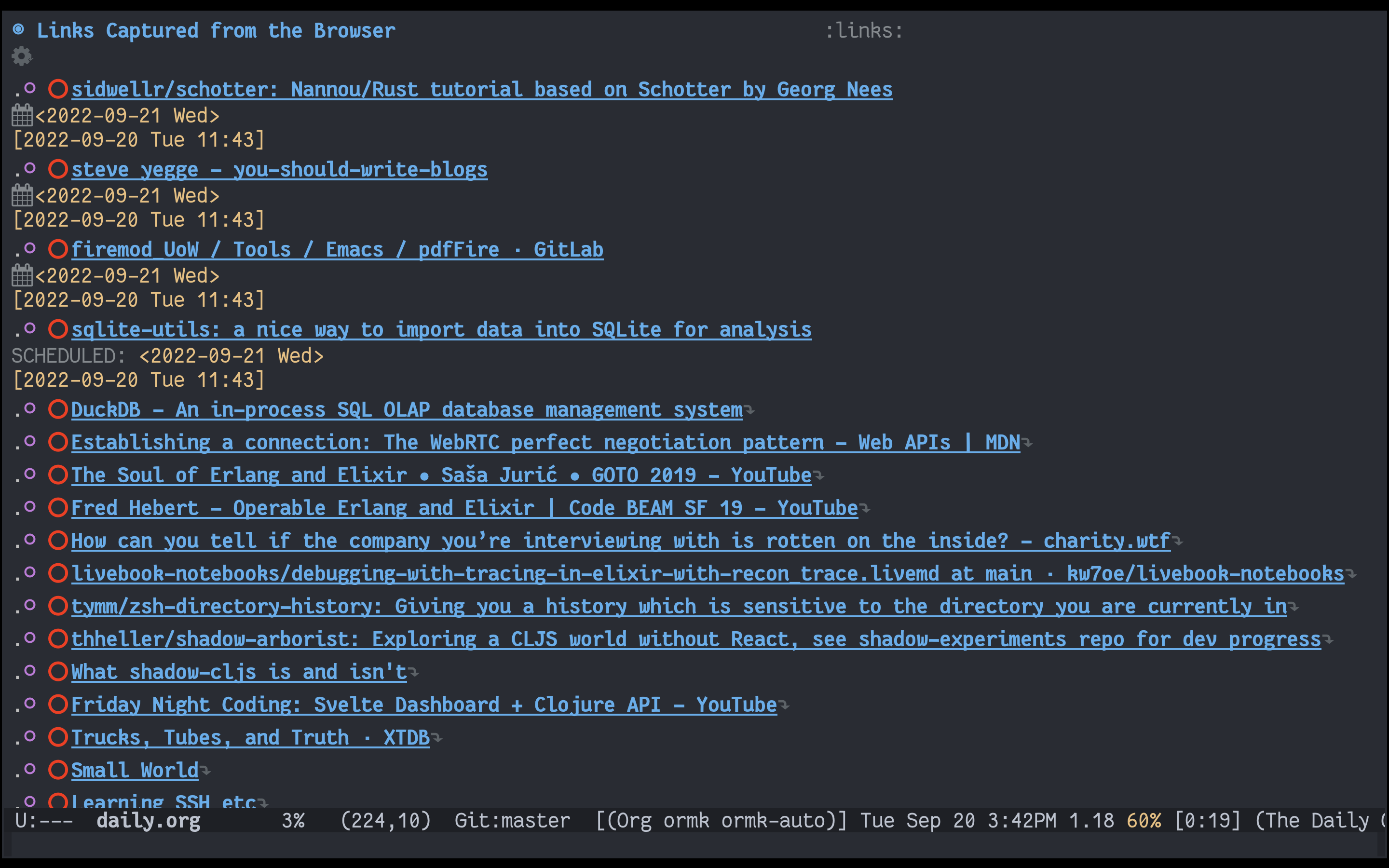
</code></pre><h1 id="what_it_looks_like">What it looks like</h1><p>Finally, this is the output, in Org Mode:</p><p><img src="/assets/images/tabfs.png" alt="img" title="Open Tabs moved to org-mode, and automatically closed!" /></p><p>I hope all the Emacs/Org-mode folks reading this find it useful! Thank you to Omar for the excellent <a href='https://omar.website/tabfs/'>TabFS</a> tool!</p>]]></content>
  </entry>
  <entry>
    <id>https://vedang.me/gitlab-private-pages-docker/</id>
    <link href="https://vedang.me/gitlab-private-pages-docker/"/>
    <title>Gitlab Private Pages + Running Docker containers in Gitlab CI/CD Pipelines</title>
    <updated>2022-08-23T00:00:00+00:00</updated>
    <content type="html"><![CDATA[<h1 id="private_pages_on_gitlab">Private pages on Gitlab</h1><p>Did you know that <a href='https://docs.gitlab.com/ee/user/project/pages/'>Gitlab Pages</a> supports private / auth-based static sites? Basically, you add people you want to share your site with as Project Members to the repository. Gitlab then enforces Gitlab Login on the website, so you can only see the content if you are logged into Gitlab (and have been given access to the repository).</p><p>This is a very cool way to host private static sites freely (vs, for example, self-hosting + HTTP Basic Auth).</p><h1 id="moving_from_github_actions_to_gitlab_ci%2Fcd_pipelines_%28%2B_running_docker_containers_in_ci%2Fcd_scripts%29">Moving from Github Actions to Gitlab CI/CD Pipelines (+ running Docker containers in CI/CD scripts)</h1><p>It's ridiculously hard to Google for the right way to run a dockerized tool in CI/CD environments.</p><p>Github Actions makes this a nobrainer because their images (example: <code>ubuntu-latest</code>) have <code>docker</code> clients and servers baked in already. So you just write your command (say <code>docker run hello-world</code>) directly into your YAML file and you are done.</p><p>Gitlab CI/CD does not have this. They expect you to search + use images from Dockerhub / Gitlab Container Registry. To make matters worse, it isn't enough to use the official Docker in Docker image (which is <code>docker:latest</code> btw). Using this image only gives you the <code>docker</code> client. You still need to run the <code>docker</code> server separately. If you don't, your pipeline will fail with the following error:</p><pre><code>docker: error during connect: Post &quot;http://docker:2375/v1.24/containers/create&quot;: dial tcp: lookup docker on 169.254.169.254:53: no such host.
</code></pre><p>To run the server, you need to understand the <a href='https://docs.gitlab.com/ee/ci/services/'>Services</a> concept of Gitlab CI/CD. In short, this is a way to run services that your main job might need to access when it runs. You can use it, for example, to run database instances that your test job would connect to. In our case, we need a docker daemon service, which is provided by the <code>docker:dind</code> image.</p><p>Once you have this, then your entire pipeline will finally run. It took me a frustratingly long time to figure it all out. Here is what my final <code>.gitlab-ci.yml</code> file looks like:</p><pre><code class="language-yaml">workflow:
  rules:
    - if: $CI&#95;COMMIT&#95;BRANCH

before&#95;script:
  - mkdir -p .neuron/output &amp;&amp; touch .neuron/output/.nojekyll

pages:
  image: docker:latest
  services:
    - docker:dind
  script:
    - docker run -v $PWD/content:/notes sridca/neuron neuron gen --pretty-urls
    - cp -R content/.neuron/output public
  artifacts:
    paths:
      - public
  rules:
    - if: $CI&#95;COMMIT&#95;BRANCH == &quot;master&quot;
</code></pre><p>The <code>pages</code> job-name is special. Gitlab understands that it is meant for hosting, and expects HTML / assets in a top-level directory called <code>public</code>.</p><p>I hope this helps someone else waste less time.</p>]]></content>
  </entry>
  <entry>
    <id>https://vedang.me/clj-rebl-lein-cider-emacs/</id>
    <link href="https://vedang.me/clj-rebl-lein-cider-emacs/"/>
    <title>How to use the Clojure REBL with Leiningen, Cider and Emacs</title>
    <updated>2020-10-28T00:00:00+00:00</updated>
    <content type="html"><![CDATA[<p>Note&#42;: This set of instructions only work on <strong>Clojure 1.10+</strong>, <strong>Lein 2.9+</strong> and <strong>JDK 11+</strong>. Also, REBL requires a license for commercial use.</p><p>I didn't find a handy reference to getting started with REBL if your primary workflow is Leiningen/nrepl, so here is the series of things I had to do to get the REBL up and running for myself.</p><ol><li>Download the <a href='https://docs.datomic.com/cloud/other-tools/REBL.html'>REBL jar</a> from Cognitect.</li><li>Use <a href='https://github.com/kumarshantanu/lein-localrepo'>lein-localrepo</a> to install the REBL jar to your m2.<pre><code class="language-shell-script">    lein localrepo install rebl-0.9.242/rebl-0.9.242.jar com.cognitect/rebl 0.9.242
    </code></pre></li><li>Add the following code to your <code>profiles.clj</code> file (code below). This is based on the <a href='https://docs.datomic.com/cloud/other-tools/REBL.html#installation'>REBL installation guide</a> and <a href='https://github.com/RickMoynihan/nrebl.middleware'>Rick Moynihan's nrepl middleware</a>:<pre><code class="language-clojure">    {
     ;; ....
     ;; You other profiles stuff
     ;; ....
     :rebl {:plugins &#91;&#91;cider/cider-nrepl &quot;0.25.3&quot;&#93;
                      &#91;refactor-nrepl &quot;2.5.0&quot;&#93;
                      &#91;nrepl &quot;0.8.2&quot;&#93;&#93;
            :repl-options {:nrepl-middleware &#91;nrebl.middleware/wrap-nrebl&#93;}
            :dependencies &#91;&#91;org.clojure/tools.deps.alpha &quot;0.7.511&quot;&#93;
                           &#91;com.cognitect/rebl &quot;0.9.242&quot;&#93;
                           &#91;org.clojure/core.async &quot;1.3.610&quot;&#93;
                           &#91;cljfmt  &quot;0.6.4&quot;&#93;
                           &#91;rickmoynihan/nrebl.middleware &quot;0.3.1&quot;&#93;
                           &#91;org.openjfx/javafx-fxml &quot;15-ea+6&quot;&#93;
                           &#91;org.openjfx/javafx-controls &quot;15-ea+6&quot;&#93;
                           &#91;org.openjfx/javafx-swing &quot;15-ea+6&quot;&#93;
                           &#91;org.openjfx/javafx-base &quot;15-ea+6&quot;&#93;
                           &#91;org.openjfx/javafx-web &quot;15-ea+6&quot;&#93;&#93;}
     ;; ....
     ;; If you don't have anything in your profiles.clj right now, just
     ;; remove the comments and copy the whole map over.
     }
    </code></pre></li><li>Start the REPL with the new profile<pre><code class="language-shell-script">    lein with-profile +rebl repl :headless
    </code></pre></li><li>Connect to the REPL from Emacs. Do this by opening up any Clojure file in your project and executing <code>M-x cider-connect</code> in the file.</li><li>Run the following commands in the REPL to spin up the REBL.<pre><code class="language-clojure">    &#40;require '&#91;cognitect.rebl :as rebl&#93;&#41;
    &#40;rebl/ui&#41;
    </code></pre></li><li>At this point, anything that you evaluate when programming will be sent to your REPL as well as to your REBL and can be inspected from there. Anything you evaluate into the REPL will be sent over to the REBL as well.</li><li>Work on the REPL as you normally would. Your work is also being sent into the REBL for fancy viewing when you need it.</li></ol>]]></content>
  </entry>
  <entry>
    <id>https://vedang.me/problems-in-system76-oryx-pro/</id>
    <link href="https://vedang.me/problems-in-system76-oryx-pro/"/>
    <title>Problems in my brand new System76 Oryx Pro laptop</title>
    <updated>2019-05-31T00:00:00+00:00</updated>
    <content type="html"><![CDATA[<p><div class="orgtoc"></p><ul><li><a href='#org9486a58'><strong>Important Note</strong></a></li><li><a href='#orga97b315'>Emacs is unusable due to constant movement of the cursor.</a></li><li><a href='#org6850a29'>The space key is weird.</a></li><li><a href='#org419f794'>Power management and suspend.</a></div></li></ul><p><a id="org9486a58"></a></p><h1 id="**important_note**"><strong>Important Note</strong></h1><p>I'm enjoying using a Linux laptop after years of development on the Macbook, and this post is more a list of issues I personally faced on moving to Linux after 7 years of development on the Macbook. I'd written a similar thing when I'd moved to the Macbook for the first time. Hopefully, this will help someone else moving to this particular laptop. This is not a "look, linux sux" post. The Oryx Pro is a great machine, and is a far better experience than the overall Linux experience I remember from 2012.</p><p><a id="orga97b315"></a></p><h1 id="emacs_is_unusable_due_to_constant_movement_of_the_cursor.">Emacs is unusable due to constant movement of the cursor.</h1><ul><li>The cursor constantly moves to the end of the first line on screen for no apparent reason.<ul><li>I'm convinced the reason that the cursor moves to the end of the first line on screen has to do with the position of the mouse-pointer. I confirmed this by changing &#8216;mouse-avoidance-mode' to &#8216;animate' (from &#8216;banish'). This stops the pointer from being moved to the top right corner on key press in Emacs. Now, the cursor does not move to the end of the first line like it used to, but to some other random place (wherever the mouse pointer happened to be last)</li></ul></li><li>Repeatedly performing certain key-bindings (like C-n) causes a buffer menu to pop up. I have no idea why this happens and how to reproduce it / stop it.<ul><li>Once the menu shows up, repeatedly pressing the same key-binding causes it to go away after some time. (This may be true only of C-n, which is what triggers this for me the most.)</li></ul></li><li><strong>Update</strong> : Both problems above are due to the awkward placing of the touchpad on the System 76 laptops. This touchpad is sensitive and registers "ghost clicks" during typing. I confirmed this by disabling my touchpad. The problem went away. This is an acceptable workaround for me as I don't need the mouse when I'm in Emacs (and disabling/enabling the touchpad is straightforward using <code>xinput</code>)<ul><li><code>xinput list</code> will list all the available input devices. Look for your touchpad and note the id of the device.</li><li><code>xinput disable &lt;id&gt;</code> will disable the device.</li><li><code>xinput enable &lt;id&gt;</code> will enable the device.</li></ul></li></ul><p><a id="org6850a29"></a></p><h1 id="the_space_key_is_weird.">The space key is weird.</h1><ul><li>More than any other key on the laptop, the space key needs a solid thump for it to register. This is especially irritating when typing out passphrases, since there is no visible feedback.</li><li><strong>Update</strong> : Over time, I've gotten used to this and no longer need to worry about whether my keypress has registered or not.</li></ul><p><a id="org419f794"></a></p><h1 id="power_management_and_suspend.">Power management and suspend.</h1><h2 id="no_%22just_works%22_for_suspend.">No "just works" for Suspend.</h2><ul><li>Years of using the Mac have trained me to just shut the laptop lid when I'm done working. However, with Oryx, there is no predictable way to tell whether the battery will continue to be drained or not once the lid is down. I've left a fully charged laptop, come back to it 4 hours later to find that it was completely drained (to the point that it does not start unless you plug it into a power source). I have no clue why this happens.<ul><li><strong>Update</strong> : Apparently this is famous in the world of System76 as the 'suspend black screen of death' bug. :( These are the kind of things due to which 'year of the Linux desktop' is a broken promise.</li></ul></li><li><strong>Update 2</strong> : Suspend works okayish, it just drains the battery faster than I would have expected. I guess I'll have to learn to live with this (but it seriously hampers the use of this laptop as a carry-around device, which is something I'm grumpy about).</li><li><strong>Update 3</strong> : Prolonged use of this laptop really makes me appreciate the incredible power management of the Macbook. I love Oryx as a development environment, but the Macbook's power management is in a whole different class.</li></ul><h2 id="the_power_button_is_weird.">The Power button is weird.</h2><p>I've gotten into the habit of shutting down my laptop when I'm unsure about battery and want to definitely conserve it (example when I'm traveling). There is no immediate feedback on pressing the power button. Due to this, it's hard to know if the keypress has registered or not. This is a small gripe in the big picture, but it gets annoying fast.</p>]]></content>
  </entry>
  <entry>
    <id>https://vedang.me/what-your-programming-editor-should-do/</id>
    <link href="https://vedang.me/what-your-programming-editor-should-do/"/>
    <title>What Your Programming Editor Should Be Able To Do.</title>
    <updated>2016-11-11T00:00:00+00:00</updated>
    <content type="html"><![CDATA[<p><em>As a programmer, you spend 80% of your time in the editor. You need to master it if you want to boost your productivity. The artisan who doesn't care for their tools is no artisan at all.</em></p><p><em>This is an incomplete list of the things your editor should be able to do for you. Please help me make it better by suggesting functionality that you find indispensable in your editor.</em></p><p><em>I have tried to arrange it in decreasing order of importance. I consider all this functionality table stakes, but if you must prioritise then start from the top.</em></p><p><div class="orgtoc"></p><ul><li><a href='#h:C1BC272B-3DD1-4B28-A41D-19E109A1F25B'>Complete Anything (In Emacs: company, capf, eldoc)</a></li><li><a href='#h:6D5CFE7F-B343-4258-A192-66C4A9AC1246'>Jump to source and back (In Emacs: xref, via dumb-jump or eglot)</a></li><li><a href='#h:F5800922-1D27-4114-B92B-D37E7F5C07E3'>Check your syntax as you type (In Emacs: flycheck, flymake)</a></li><li><a href='#h:41288E34-597C-43A3-AFFD-9CF9FF1C27BF'>Understand and manipulate your project structure (In Emacs: project.el)</a></li><li><a href='#h:3CFF166B-8276-4893-95E3-604A909A3604'>Use Git from the editor (In Emacs: magit)</a></li><li><a href='#h:5D828AB4-F397-49A5-9F9E-2645E288CB5E'>Edit code as a structured entity (In Emacs: paredit)</a></li><li><a href='#h:3FE6B133-CAFC-488E-A269-EC3615A69000'>Jump to important points in your code quickly (In Emacs: imenu and avy, helm)</a></li><li><a href='#h:B6F236D5-9B9E-46CC-83D9-D0B09DF8CF4A'>Understand and refactor your programming language (In Emacs: eglot, cider, clj-refactor, clojure-lsp)</a></li><li><a href='#h:D3394149-5B4A-42E8-9973-7EE3D2B16C68'>Run your tests on-demand, and show you the results (In Emacs: cider-test)</a></li><li><a href='#h:2D856AE1-9B6D-4CD3-9C84-DE8E19A7618E'>Debug your code using a powerful debugger (In Emacs: gud, cider-debug, dap-mode)</a></li><li><a href='#h:1B7958C9-9E7B-4300-9B2D-3BADAD132D02'>Support templates and expansion (In Emacs: yasnippet, org-capture)</a></li><li><a href='#h:044126B9-4B1A-4B0A-ABF0-3527129A957E'>Support automating fast edits (In Emacs: kmacro-start-macro, multiple-cursors)</a></li><li><a href='#h:5E53DFB2-370E-4EC3-B5E3-C167716BCD6D'>Upcoming Experimental features</a></div></li></ul><p><a id="h:C1BC272B-3DD1-4B28-A41D-19E109A1F25B"></a></p><h1 id="complete_anything_%28in_emacs%3A_company%2C_capf%2C_eldoc%29">Complete Anything (In Emacs: company, capf, eldoc)</h1><p>Your editor should be able to show you completions for anything you are currently typing. This list includes, but is not restricted to:</p><ul><li>Completion of functions, variables, types, namespaces, classes, plain-text.</li><li>Completion of arguments, with doc-strings</li></ul><p><em>Note: <code>eldoc</code> is an Emacs built-in</em></p><p><hr></p><p><a id="h:6D5CFE7F-B343-4258-A192-66C4A9AC1246"></a></p><h1 id="jump_to_source_and_back_%28in_emacs%3A_xref%2C_via_dumb-jump_or_eglot%29">Jump to source and back (In Emacs: xref, via dumb-jump or eglot)</h1><p>Your editor should be able to jump to the definition of something on demand. This can be symbol at point (meaning word under the cursor) or can be anything I choose to enter.</p><ul><li><strong>M-.</strong> : Jump to the source of something</li><li><strong>M-,</strong> : Jump back from the source of something</li></ul><p><em>Note: <code>xref</code> is the built-in Emacs jump mechanism, <code>eglot</code> is the built-in Emacs LSP client</em></p><p><hr></p><p><a id="h:F5800922-1D27-4114-B92B-D37E7F5C07E3"></a></p><h1 id="check_your_syntax_as_you_type_%28in_emacs%3A_flycheck%2C_flymake%29">Check your syntax as you type (In Emacs: flycheck, flymake)</h1><p>Your editor must be able to integrate with a linter program. As you are typing code, it should be able to point out all the problems in your code without getting in your way or slowing you down.</p><p><em>Note: <code>flymake</code> is the built-in Emacs mechanism for integrating checkers and linters</em></p><p><code>flycheck</code> key-bindings:</p><ul><li><strong>C-c ! l</strong> : List all errors</li><li><strong>C-c ! n</strong> : Go to the next error</li><li><strong>C-c ! p</strong> : Go to the previous error</li><li><strong>M-g M-n</strong> : Go to the next error</li><li><strong>M-g M-p</strong> : Go to the previous error</li></ul><p><hr></p><p><a id="h:41288E34-597C-43A3-AFFD-9CF9FF1C27BF"></a></p><h1 id="understand_and_manipulate_your_project_structure_%28in_emacs%3A_project.el%29">Understand and manipulate your project structure (In Emacs: project.el)</h1><p>Your editor should have an understanding of the current project you are working in, as a whole. You should be able to quickly search for occurrences of certain words / phrases / symbols across the project. You should be able to pull up any file you wish in the project quickly, without needing to know exactly how the project is structured on disk</p><p><em>Note: <code>project.el</code> is the built-in Emacs project manager</em></p><p><code>project.el</code> key-bindings:</p><ul><li><strong>C-x p p</strong> : Switch to a project on disk</li><li><strong>C-x p f</strong> : Find a file in the current project</li><li><strong>C-x p G</strong> : Search for something in the current project</li></ul><p><hr></p><p><a id="h:3CFF166B-8276-4893-95E3-604A909A3604"></a></p><h1 id="use_git_from_the_editor_%28in_emacs%3A_magit%29">Use Git from the editor (In Emacs: magit)</h1><p>Your editor should be able to give you the full power of your version control system in your editor. This includes, but is not limited to: creating new commits, listing changes made in a certain file(s), jumping to different versions of the code in the VCS.</p><p><code>magit</code> key-bindings:</p><ul><li><strong>M-x magit-status</strong> : Access the magit-status buffer for your project.</li><li><strong>C-c C-c</strong> : Access the full set of possible actions in your buffer</li><li><strong>M-x magit-blame-addition</strong> : For each line of the current buffer, show the revision which it was added in</li></ul><p><hr></p><p><a id="h:5D828AB4-F397-49A5-9F9E-2645E288CB5E"></a></p><h1 id="edit_code_as_a_structured_entity_%28in_emacs%3A_paredit%29">Edit code as a structured entity (In Emacs: paredit)</h1><p>Your editor should be able to understand the semantics of your programming language. It should be able to recognise and move quickly between functions and expressions. It should be able to manipulate entire expressions in one go.</p><ul><li><strong>C-a</strong> : <code>beginning-of-line</code></li><li><strong>C-e</strong> : <code>end-of-line</code></li><li><strong>M-a</strong> : <code>backward-sentence</code></li><li><strong>M-e</strong> : <code>forward-sentence</code></li><li><strong>C-M-f</strong> : <code>forward-sexp</code></li><li><strong>C-M-b</strong> : <code>backward-sexp</code></li><li><strong>C-M-a</strong> : <code>beginning-of-defun</code></li><li><strong>C-M-e</strong> : <code>end-of-defun</code></li><li><strong>M-m</strong> : <code>back-to-indentation</code></li><li><strong>C-)</strong> : <code>paredit-forward-slurp-sexp</code></li><li><strong>C-(</strong> : <code>paredit-backward-slurp-sexp</code></li><li><strong>C-}</strong> : <code>paredit-forward-barf-sexp</code></li><li><strong>C-{</strong> : <code>paredit-backward-barf-sexp</code></li></ul><p><hr></p><p><a id="h:3FE6B133-CAFC-488E-A269-EC3615A69000"></a></p><h1 id="jump_to_important_points_in_your_code_quickly_%28in_emacs%3A_imenu_and_avy%2C_helm%29">Jump to important points in your code quickly (In Emacs: imenu and avy, helm)</h1><p>Your editor should be able to jump to all the important points of your code in the least number of keystrokes (i.e. quickly). You should be able to quickly see all function names, type declarations, variable declarations in a given file and ideally in a given project as well. You should be able to jump to any word on the screen quickly.</p><p><em>Note: <code>imenu</code> is a built-in Emacs feature</em>.</p><p>My <code>helm</code> and <code>avy</code> key-bindings:</p><ul><li><strong>C-x c i</strong> : Show all the function, type, variable declaration names and be able to jump to any of them with a few keystrokes</li><li><strong>C-x c b, C-c n</strong> : Cycle through all the "sessions" and resume any you wish. A session here is a search of any kind that you have done before: for a file name, symbol name, variable listing, bookmarks etc</li><li><strong>M-g SPC</strong> : Jump to a word on screen by typing the starting character</li></ul><p><hr></p><p><a id="h:B6F236D5-9B9E-46CC-83D9-D0B09DF8CF4A"></a></p><h1 id="understand_and_refactor_your_programming_language_%28in_emacs%3A_eglot%2C_cider%2C_clj-refactor%2C_clojure-lsp%29">Understand and refactor your programming language (In Emacs: eglot, cider, clj-refactor, clojure-lsp)</h1><p>Your editor should have a clear understanding of the code you are writing, and should be able to help you change it faster. This includes, but is not limited to:</p><p><em>Note: <code>eglot</code> is the built-in LSP client for Emacs. <code>cider</code>, <code>clj-refactor</code> and <code>clojure-lsp</code> are Emacs packages specific to the Clojure programming language.</em></p><ul><li>Refactoring support:<ul><li>Being able to rename symbols across the project</li><li>Being able to suggest code clean up</li><li>Being able to quickly import / clean-up dependencies</li></ul></li><li>Finding usages of code:<ul><li>Being able to find all the places where a certain function is being used</li></ul></li></ul><p><hr></p><p><a id="h:D3394149-5B4A-42E8-9973-7EE3D2B16C68"></a></p><h1 id="run_your_tests_on-demand%2C_and_show_you_the_results_%28in_emacs%3A_cider-test%29">Run your tests on-demand, and show you the results (In Emacs: cider-test)</h1><p>Your editor should be able to run the tests of your project, integrating with your test-runner. It should be able to run these tests on-demand, and show the results of running the tests. You should be able to re-run all the tests, or only the failed tests. This depends on the test-runner and not the editor, so check whether your test-runner is powerful enough.</p><p><code>cider-test</code> is provided by the <code>cider</code> Emacs package for running Clojure project tests. Other languages have similar modes provided for their projects.</p><p><hr></p><p><a id="h:2D856AE1-9B6D-4CD3-9C84-DE8E19A7618E"></a></p><h1 id="debug_your_code_using_a_powerful_debugger_%28in_emacs%3A_gud%2C_cider-debug%2C_dap-mode%29">Debug your code using a powerful debugger (In Emacs: gud, cider-debug, dap-mode)</h1><p>Your editor should integrate with and start a debugger on demand. At least the basics of debugging (set breakpoints, step-in, step-out, see local variables) should be supported.</p><p><em>Note: In Emacs, <code>gud</code> is built-in and integrates with a variety of debuggers.</em></p><p><hr></p><p><a id="h:1B7958C9-9E7B-4300-9B2D-3BADAD132D02"></a></p><h1 id="support_templates_and_expansion_%28in_emacs%3A_yasnippet%2C_org-capture%29">Support templates and expansion (In Emacs: yasnippet, org-capture)</h1><p>Your editor should support creation and fast usage of templates (snippets) for common boiler-plate functionality. This speeds up development and documentation tremendously.</p><p><hr></p><p><a id="h:044126B9-4B1A-4B0A-ABF0-3527129A957E"></a></p><h1 id="support_automating_fast_edits_%28in_emacs%3A_kmacro-start-macro%2C_multiple-cursors%29">Support automating fast edits (In Emacs: kmacro-start-macro, multiple-cursors)</h1><p>Your editor should be able to help you with one-off weird edits, eg: automatically numbering every new line with an incrementing counter.</p><p><hr></p><p><a id="h:5E53DFB2-370E-4EC3-B5E3-C167716BCD6D"></a></p><h1 id="upcoming_experimental_features">Upcoming Experimental features</h1><p>I am currently working on fine-tuning my editor experience to work best with LLMs and Code Assistants. The current state-of-the-art for this is the VSCode fork <a href='https://www.cursor.com/'>Cursor</a>, and there is <a href='https://sourcegraph.com/blog/the-self-driving-ide-is-coming'>excellent</a> <a href='https://docs.github.com/en/copilot/about-github-copilot'>work</a> <a href='https://aider.chat/'>happening</a> in this area.</p><p>Stay tuned!</p><p><hr></p>]]></content>
  </entry>
  <entry>
    <id>https://vedang.me/why-i-quit-stumpwm/</id>
    <link href="https://vedang.me/why-i-quit-stumpwm/"/>
    <title>Why I Quit StumpWM</title>
    <updated>2011-08-04T00:00:00+00:00</updated>
    <content type="html"><![CDATA[<p><div class="orgtoc"></p><ul><li><a href='#org8ca0e8f'>Pinky Hell</a></li><li><a href='#orgb98b781'>What you gain in Functionality, you lose in Integration</a></li><li><a href='#org1037c0b'>Dead processes, High temperatures</a></li><li><a href='#orgf8c39da'>How I got over the Withdrawal Symptoms:</a></li><li><a href='#orge40c9b5'>References:</a></div></li></ul><p>After using <a href='http://www.nongnu.org/stumpwm/'>StumpWM</a> for nearly a year, I'm finally quitting and moving back to Gnome. I came to love StumpWM's minimalistic approach, and this isn't an easy decision. So why am I doing it?</p><p><a id="org8ca0e8f"></a></p><h1 id="pinky_hell">Pinky Hell</h1><p>I am (was) a heavy user of Emacs, Tmux and StumpWM. These programs rely heavily on the <code>Ctrl</code> key. This means that the <code>Ctrl</code> key and my left pinky finger are pretty much destroyed at this point. With the spectre of RSI looming over my head, StumpWM is the easiest tool to get rid off. I might have less screen-space now, but my fingers will thank me for it.</p><p><a id="orgb98b781"></a></p><h1 id="what_you_gain_in_functionality%2C_you_lose_in_integration">What you gain in Functionality, you lose in Integration</h1><p>StumpWM is infinitely configurable. If you have the patience, you can get it to do things that are simply impossible with other Windows Managers. For example, there is a <code>mpd.lisp</code> module inside the contrib directory which converts StumpWM into a MPD client. A <span class="underline">full-fledged client</span>. This means that all music operations are entirely unobtrusive and <span class="underline">always</span> at your beck and call. MPD with StumpWM has without a doubt been the best music setup I've ever used.</p><p>However, I missed Gnome's integration with Ubuntu - Ubuntu One, Gwibber, Pidgin, event notifications. Even if I <span class="underline">could</span> configure StumpWM for these things, there was too much effort involved.</p><p><a id="org1037c0b"></a></p><h1 id="dead_processes%2C_high_temperatures">Dead processes, High temperatures</h1><p><span class="underline">Disclaimer</span> : Everything I'm about to say now is conjecture. There is no proof that StumpWM is responsible for any of this.</p><p>At 5 days uptime, my system load was touching 2, and my system temperature was at 65 degrees C. <a href='http://about.me/kiran_kulkarni/'>KK</a> had a similar number of programs running on his system - this is a guy who uses full-blown <a href='http://www.compiz.org/'>compiz</a> effects - his system temperature was 36 degrees and load average was around 1.15. Furthermore, he had a 48 day uptime. KK gleefully told me that it had to be StumpWM that was the problem! He was kidding, but some inquiry around the office showed that my laptop was much worse than the other guys on Ubuntu.</p><p>I also found that Chrome was leaving behind loads of defunct processes on my machine. There were 41 defunct chromium-browser processes when I decided to reboot the laptop and do some monitoring. Within an hour of the reboot, I had 7 defunct processes, CPU temperature was at 45 degrees and the load average was hovering around 1.8. That was the proverbial straw that broke the camel's back. I switched back to Gnome. Later in the day, I thought about actually investigating the behavior of my laptop, but it's been behaving well on Gnome. As I write, I have a day's uptime, a load average of 1.03 and CPU temperature at 37.5 degrees C. Unscientific, but fine by me.</p><p><a id="orgf8c39da"></a></p><h1 id="how_i_got_over_the_withdrawal_symptoms%3A">How I got over the Withdrawal Symptoms:</h1><p>Of all the StumpWM features, there was just one that I simply could not do without - 'run-or-raise'. On StumpWM, you can define hot-keys to behave as follows:</p><ol><li>Launch the program if it is not running</li><li>Move focus to the program if it is already running.</li></ol><p>I use one Emacs instance, one terminal instance (tmux'ed) and one Chrome instance. I <span class="underline">need</span> to be able to access them with minimal friction. Turns out, a little hackery on compiz is all we need - <code>compiz-send.py</code> is a nifty little script that sends messages to DBus and interacts with compiz. I can use it along with <code>xdtool</code> to implement my run-or-raise behavior. Here is a look at my <code>run-or-raise-emacs.sh</code> script:</p><p><a href="https://gist.github.com/vedang/1130303">https://gist.github.com/vedang/1130303</a></p><p>You can download <code>compiz-send</code> from <a href='http://wiki.compiz.org/Plugins/Dbus?action=AttachFile&do=get&target=compiz-send.py'>here</a></p><p>So there you have it. At the moment, life is back to Gnome+Compiz. If you know any nifty hacks for Gnome+Compiz, please let me know in the comments.</p><p><a id="orge40c9b5"></a></p><h1 id="references%3A">References:</h1><p><a href='http://wiki.compiz.org/Plugins/Dbus'>wiki.compiz.org</a></p>]]></content>
  </entry>
</feed>